This post was partly dictated using Voice Ink and cleaned up of dictation artifacts using Claude Sonnet. This is due to me battling repetitive strain injuries from typing, not because I believe AI is a good writer. I have verfied all generated text and made manual adjustments as needed, but I would be interested in feedback how it reads.
For our recent work on Morsel, an AI-first knowledge base, we looked into how to consistently crawl technical documentation and make it available for further processing by LLMs or agents. Doing so would either allow you to use the documentation for downstream processing, or you could vendor the documentation locally - in your repository, for example - and build a more easily searchable database of it. This post is about the work we did to make one individual page available in good quality. It is aimed at software engineers who have some coding background and want to get started with rendering their documentation.
As a disclaimer: This is work-in-progress and for prototyping, in a production setup you probably would want to rely on larger and more up-to-date models. All code examples are simplified from the original.
We are going to convert this example page of documentation at Hetzner, with extensive navigation and images.
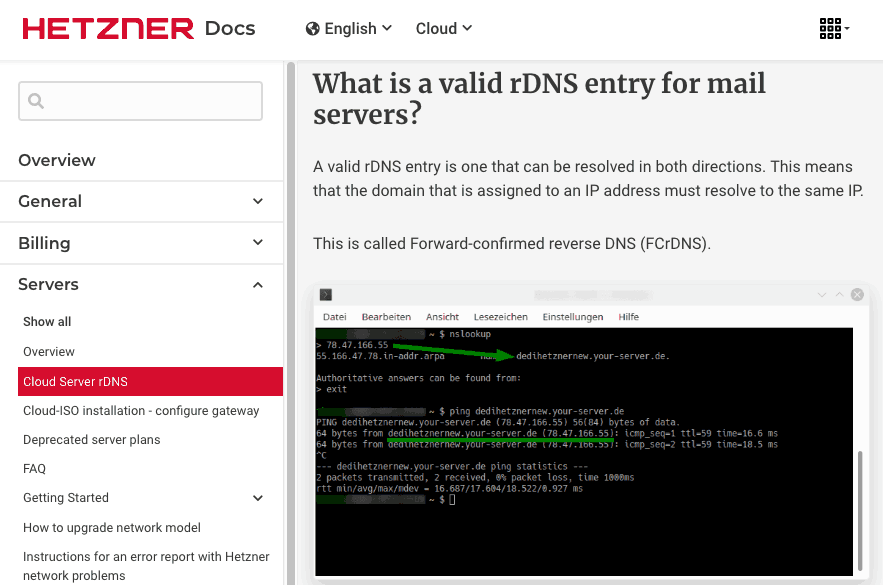
To this text-only representation of the semantic content.
# What is a valid rDNS entry for mail servers?

A valid rDNS entry is one that can be resolved in both directions. This means that the domain that is assigned to an IP address must resolve to the same IP.

This is called Forward-confirmed reverse DNS (FCrDNS).

[Image: The image shows a terminal window on a Windows operating system displaying various commands and their responses. The commands include nslookup to look up the DNS record for a domain and ping to test the network connection. The nslookup command first resolves the domain name to an IP address, "dedihetznernew.your-server.de," followed by a ping command checking the response time from the server to confirm connectivity. The terminal window is open in SSH mode, as indicated by the command shell prompt at the bottom right.]
Do you need help with data science? I can help and am available on a freelance basis :).
Rendering pages with JavaScript
The first challenge is downloading the content of one page. While this seems straightforward, there are some common issues with technical documentation to be aware of. Some pages need JavaScript to run before the page is rendered correctly. This means you cannot just request the source HTML - you will need a headless Chrome instance that renders the page completely and executes JavaScript before you download the resulting content. We use Playwright for this:
from playwright.sync_api import sync_playwright

with sync_playwright() as p:
    browser = p.chromium.launch(headless=True)
    context = browser.new_context()
    page = context.new_page()

    page.goto(url, wait_until="networkidle", timeout=30000)
    html = page.evaluate("document.documentElement.outerHTML")
The second problem is cookie banners and other pop-overs that appear in front of the main content, because your crawler is essentially a first-time visitor. We handle this once on the entry page of the crawl - we can afford to spend some resources here since it only runs once. We collect all visible button labels from the page and send them to an LLM to identify which one dismisses the banner. As a fallback, we also try a list of hardcoded patterns for common button labels. Once the banner is clicked away, the Playwright browser context retains that session state for all subsequent page requests in the crawl.
COOKIE_FALLBACK_PATTERNS = [
    "accept all cookies", "accept all", "accept cookies",
    "allow all cookies", "allow all", "allow cookies",
    "i agree", "agree", "got it", "ok", "consent", "accept",
]

def dismiss_overlays(page, llm_client) -> bool:
    labels = page.evaluate("""
        () => Array.from(document.querySelectorAll('button, [role="button"]'))
            .filter(el => el.offsetParent !== null)
            .map(el => el.innerText.trim())
            .filter(t => t.length > 0)
    """)

    llm_label = ask_llm_for_dismiss_button(llm_client, labels)
    candidates = ([llm_label] if llm_label else []) + COOKIE_FALLBACK_PATTERNS

    for label in candidates:
        btn = page.get_by_role("button", name=re.compile(re.escape(label), re.IGNORECASE))
        if btn.count() > 0:
            btn.first.click()
            return True
    return False
Extracting the main content
Once you have the correctly rendered content - with cookie banners removed and JavaScript executed - you want to extract only the text that is unique to the page and strip repeated elements such as navigation, headers, and footers. Those appear on every page, inflate the page size, and make it harder to search through the content later. Some technical documentation pages also have very short content, in which case the navigation scaffolding would dominate the page in something like an embedding.
trafilatura is a Python module that extracts only the main text and outputs markdown, which is useful because it preserves the structure of the text, keeps tables in tact and LLMs are very strong at understanding markdown.
import trafilatura

markdown = trafilatura.extract(
    html,
    output_format="markdown",
    include_tables=True,
    include_formatting=True,
    include_links=True,
    include_images=True,
    include_comments=False
)
Handling images
The next issue is that technical documentation often includes screenshots, diagrams, and other images that provide a good overview and are easy for humans to understand. But for models that only work with text as input, or if you want to save only the text, that is of course a problem.
What we ended up doing is downloading all the images found in the extracted content of the page. We pre-filter them to exclude very small images that are likely just icons or decorative elements - anything where either dimension is smaller than ~50 pixels.
For the remaining images, we ask an LLM to classify each one as either having content or being purely decorative before attempting a full description. LLMs are quite strong as judges, and on image-heavy pages it saves meaningful time and resources:
CLASSIFY_PROMPT = """Is this image decorative or a purely user interface element with no
meaningful technical content worth describing? If in doubt, answer no.
Answer with only: YES or NO"""

answer = vision_call(client, image_bytes, CLASSIFY_PROMPT).lower()
if answer.startswith("yes"):
    return  # decorative - skip description
For the images that pass the classification step, we send them to the LLM with this prompt:
Describe this image from technical software documentation. Focus on the most important and visually prominent elements - what is highlighted, emphasized, or central to the image. Keep your description to a maximum of five to ten sentences. Do not use any markdown formatting, bullet points, or headlines - write in plain continuous prose.
We run this locally using Ollama with qwen2.5vl:3b, a small vision model that is fast enough for prototyping with a one-time crawl:
VISION_MODEL = "qwen2.5vl:3b"  # via Ollama

def vision_call(client, image_bytes: bytes, prompt: str) -> str:
    b64 = base64.standard_b64encode(image_bytes).decode()
    response = client.chat.completions.create(
        model=VISION_MODEL,
        messages=[{"role": "user", "content": [
            {"type": "image_url", "image_url": {"url": f"data:image/png;base64,{b64}"}},
            {"type": "text", "text": prompt},
        ]}],
        max_tokens=350,
    )
    return response.choices[0].message.content.strip()
For every image, we save the description. To be honest, this sometimes works very well and sometimes quite badly - there are definitely still issues in this step. This is where you’d likely want to experiment with models and prompts to find a stronger setup than ours ;).
Finally, we use the image descriptions, keyed by image URL, to create an enriched markdown version of the page. We replace all image links with a note that an image was there and a description of it.
Result
The final result is one page of technical documentation rendered completely after JavaScript has run, with all cookie banners and one-time visitor overlays removed, and stripped of surrounding navigation, headers, and footers.
Only the main content is preserved, rendered as markdown instead of HTML. Any semantically relevant images are replaced with a textual description. This gives you a clean, text-only input for further processing - or something a local coding agent can search through to find information.
Do you need help with data science? I can help and am available on a freelance basis :).